
Auditing AI Generated Models
in under 20 minutes
More people are using AI to draft models, without checking the output has been built correctly. Made-up functions, silent sign inversions, hard-coded plugs, complex nested formulas no one can read, inconsistent rounding, broken lookups. They all slip past a confident spot-check. This seven-step workflow audits an AI-generated model in under 20 minutes.
On this page
Before
Manual review of AI generated outputs
- Hours of manual trace across AI-generated tabs
- No structural map of what the AI actually built
- Long AI-emitted formulas you cannot decode in the formula bar
- No way to prove the AI did not hallucinate a function, invert a sign, or fabricate a reference
After
Excelerate 7-step AI-audit workflow
- Same audit, 13x faster
- Whole-model dependency map of the AI's output in 10 seconds
- Style Guard highlights each sheet's inputs, links, and externals
- Logical Flow Map traces every suspect formula to its real source
What you walk away with
Two audit deliverables
- Mental map of how the AI structured the model, input to output
- Ranked list of suspicious AI-generated formulas with plain-English explanations
When you would run this workflow
Three scenarios where you have asked AI to draft a model and need to verify it before it leaves your screen.
- Draft 3-statement model from a brief. You asked Claude or ChatGPT to generate a 3-statement model from a one-page memo. The output looks coherent. Before sharing it with your CFO, you need to confirm the formulas actually do what the AI claimed they do.
- Copilot-expanded forecast model. Microsoft Copilot extended your existing forecast across five new product lines. Rows look uniform at a glance, but you have not verified Copilot kept the formula pattern consistent across every cell it touched.
- Junior analyst hands you an AI-assisted model. Your junior used AI to build the bulk of a business case model. They cannot tell you with confidence which formulas are theirs and which came from the AI. You need a workflow that audits the whole thing without depending on provenance.
Why this is hard the traditional way
Auditing an AI-generated model compounds friction at every step:
- AI confidently produces formulas that look right but fail at edge cases.
- Hallucinated function combinations that work on the sample the AI saw but break on yours.
- Highly complex nested formulas (long LET / LAMBDA chains, multi-step IFs, deep INDEX/MATCH) the AI emits as a single 300-character expression you cannot read in the formula bar.
- Sign conventions silently inverted. Totals appear consistent because both sides flipped.
- Hard-coded plugs the AI inserted when it could not compute a value, buried inside long formulas.
- Lookups pointing at ranges or columns the AI invented but never actually created on the source sheet.
- Volatile functions (OFFSET, INDIRECT, NOW) the AI uses without flagging the recalculation cost.
- Date, unit, and rounding conventions silently inconsistent across sheets the AI generated independently.
- No audit trail of what the AI wrote versus what a human wrote.
- No way to prove you have checked the AI's work end-to-end.
The Excelerate workflow
AI lets analysts draft models in minutes. Auditing those models is the work that still needs doing. This 7-step workflow gives you that process, so you can leverage AI and ensure the output it creates meets your standards and checks.
Seven tools. Under twenty minutes. Each step states what the tool does, the specific pain it removes, and the result.
See what the AI actually built in 10 seconds
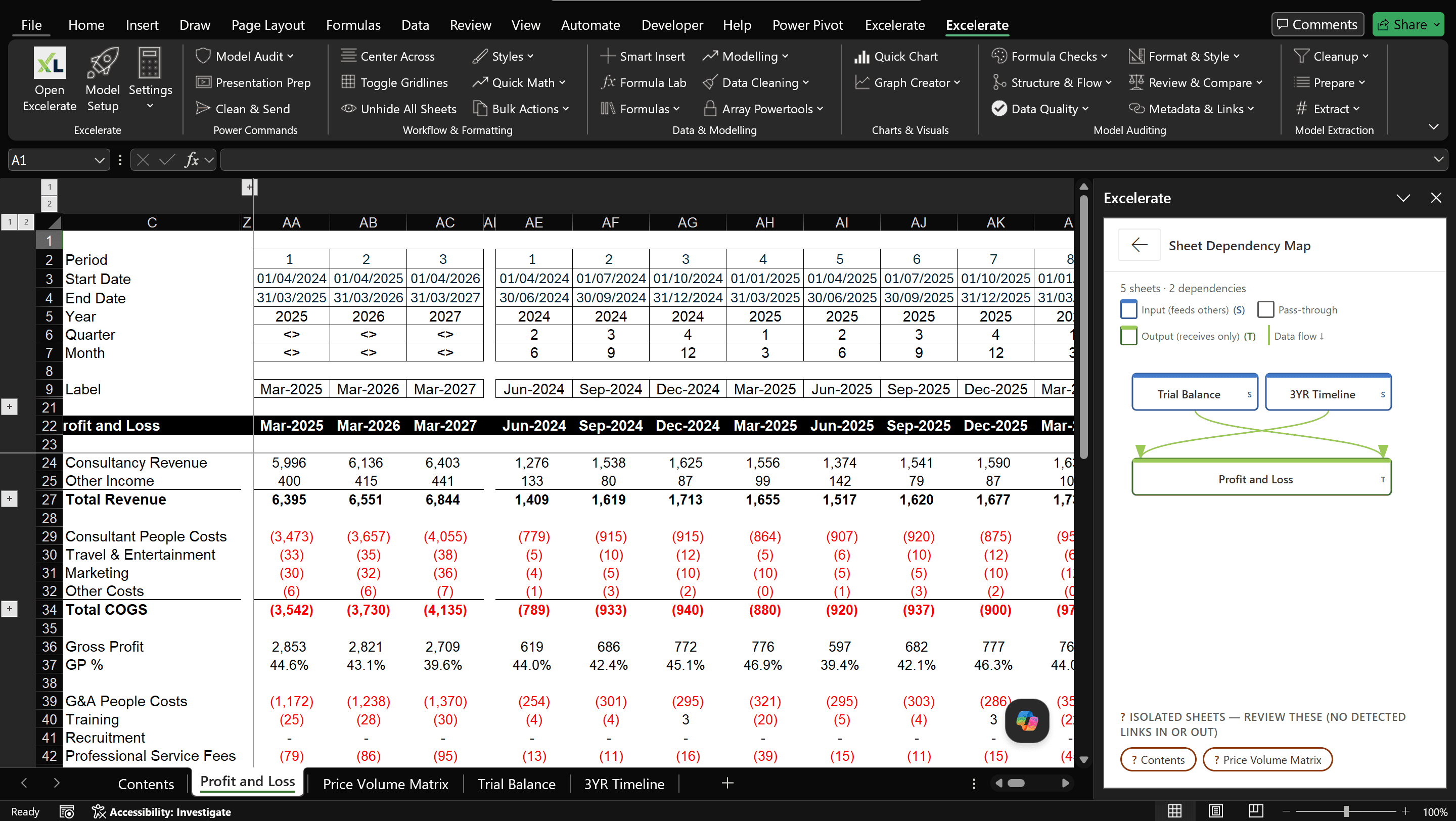
2 minRun the Sheet Dependency Map on the workbook. Excelerate parses every formula reference, named range, and 3D reference, then renders the workbook as a directed graph: sources at the top in blue, terminal sheets at the bottom in green, intermediate calculations in grey. Isolated sheets (common when AI generates tabs it never wires in) surface in a dedicated section below the diagram. Click any node to jump straight to that sheet in Excel.
Why this beats manual
- Cross-sheet dependencies the AI created visible in one view.
- Hidden and very-hidden sheets (including ones the AI may have created and never surfaced) are included.
- Same overview in 10 seconds whether the AI built 5 tabs or 50.
You now have a mental map of what the AI built before opening a single formula.
Strip out the AI's scratch work
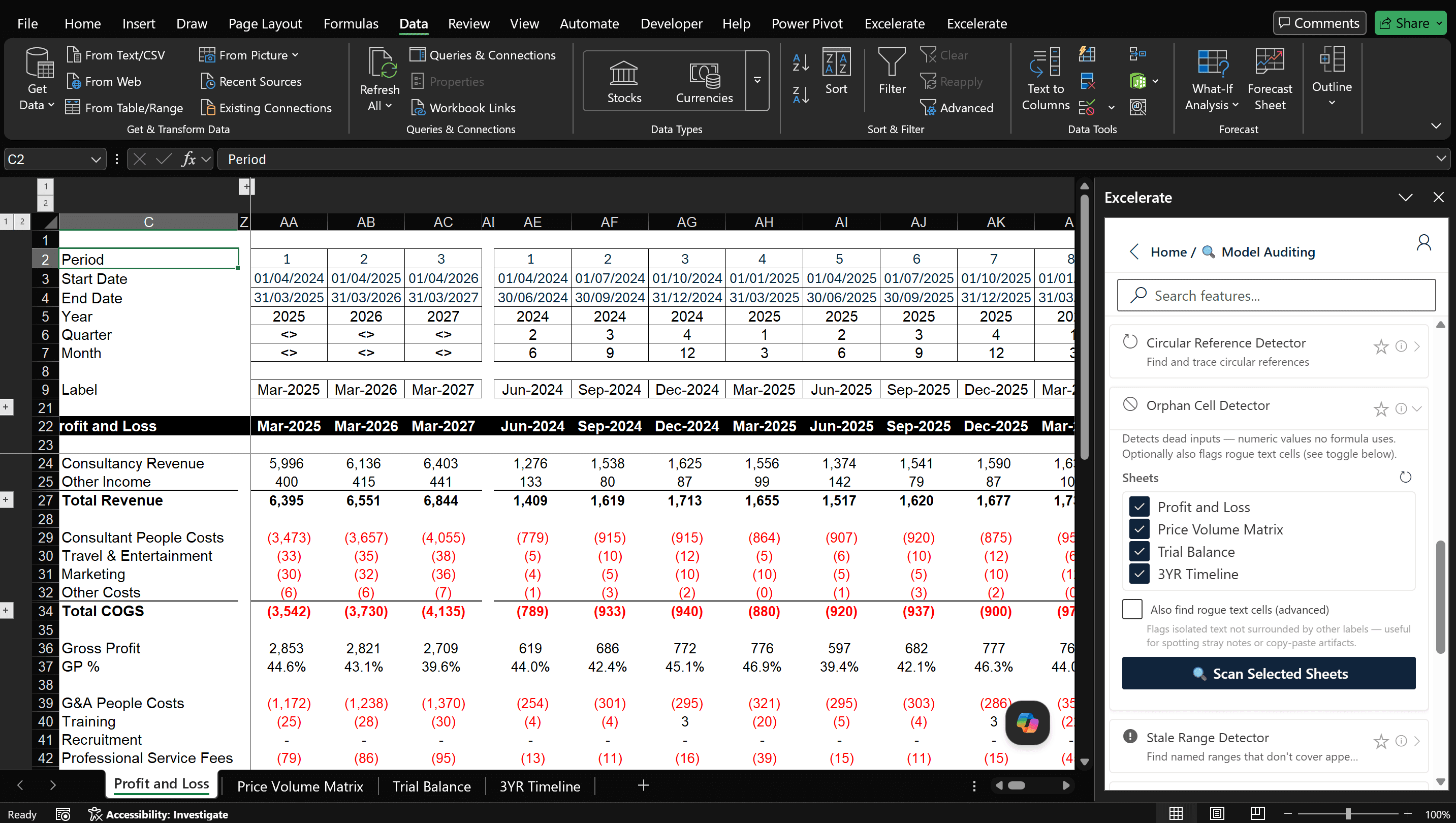
1 minRun the Orphan Cell Panel against the sheets you want to scope. Excelerate finds numeric constants that no formula references and stranded text values with no adjacent labels. Each finding shows the cell address with a jump-to-cell button so you can review before deciding to keep or remove.
Why this beats manual
- AI scratchpads hide in plain sight. Tab-by-tab inspection misses them on busy sheets.
- Stranded text from prompt context is easy to mistake for live commentary.
- You separate "remove" from "keep" decisions in one pass instead of debating each cell.
You now know what the AI wired into the model and what it left lying around.
Highlight every sheet the AI built
1 minRun Style Guard on each sheet the AI generated. Excelerate applies colour-coded conditional formatting in seconds: dark-blue for hard-coded numeric inputs, dark-green for inter-sheet formula links, dark-yellow for external workbook references. In one glance you see what the AI hard-coded, what it wired across sheets, and what it linked outside the workbook.
Why this beats manual
- AI commonly hard-codes values mid-formula or in calculation sheets where they do not belong. Style Guard makes every hard-coded value visible without reading a single cell.
- External workbook links the AI inserted show up immediately in yellow, so you can verify the target files exist before the model breaks on someone else's machine.
- Cross-sheet wiring (green) reveals at a glance whether the AI structured the model with one calculation layer or scattered logic across every sheet it generated.
You now know what is input, what is linked, and what reaches outside the workbook on every sheet the AI built.
Surface where the AI drifted
2 minRun the Formula Inconsistency Detector across the workbook. It checks every formula for the things AI gets wrong: rows where the formula pattern breaks halfway through, numbers typed inside formulas instead of calculated, lookups pointing at ranges that no longer exist, and named ranges that return #REF!. You get a ranked list with severity badges and a one-line explanation for each finding.
Why this beats manual
- Inconsistencies surfaced immediately.
- Pattern comparison across rows and sheets is automatic. A human eye scans one row at a time.
- Highlight inconsistency immediately with conditional formatting.
- The highest-severity findings surface first instead of being hidden in low-risk noise.
You now have a triaged list of every AI-generated formula that needs your attention.
Decode the AI's long formulas
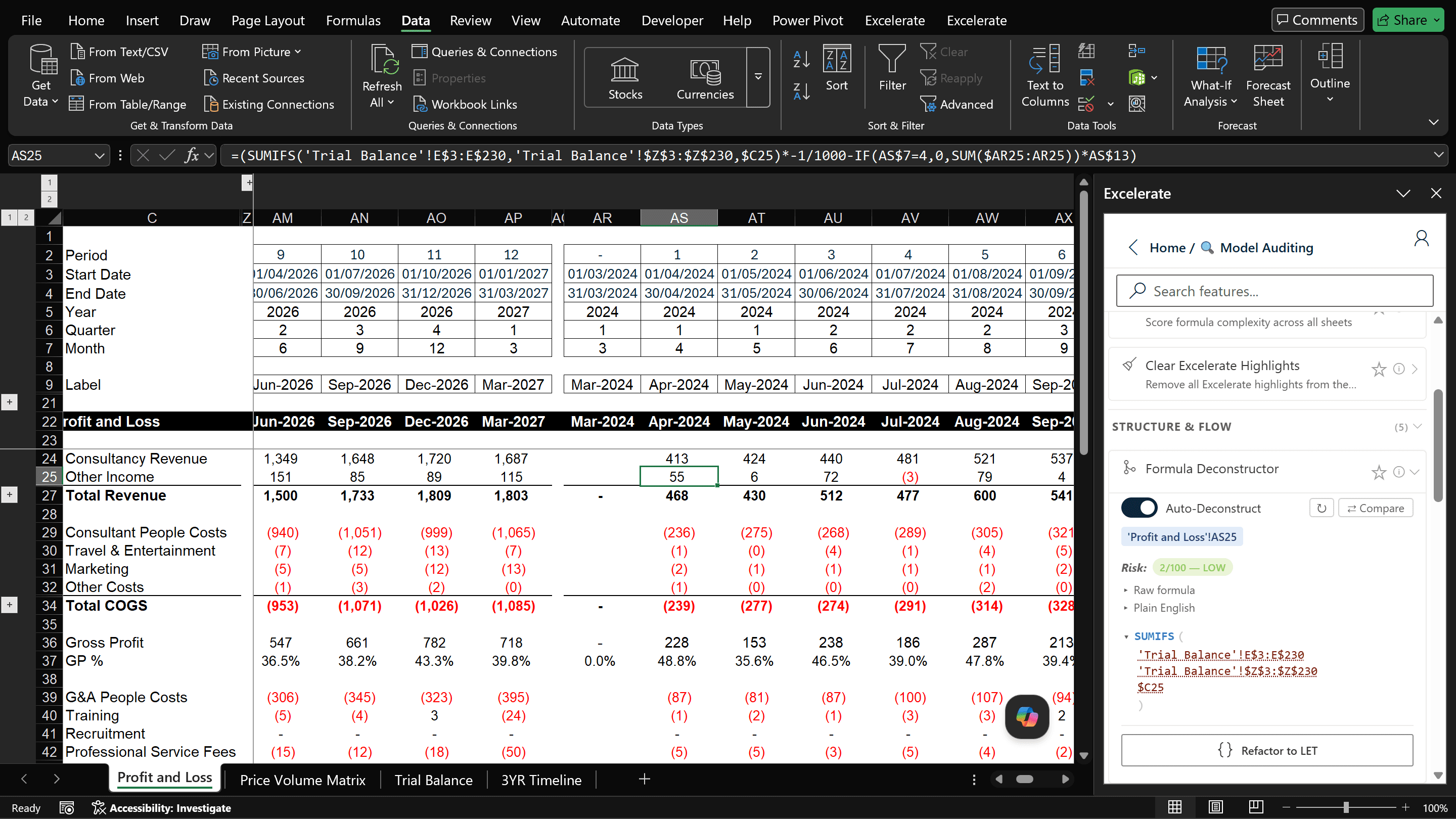
2 minOpen the Formula Deconstructor on each flagged formula. Excelerate breaks the formula into named sub-expressions with plain English labels. A 200-character SUMPRODUCT or nested LET (the kind AI loves to emit) becomes four readable lines. You decide in 30 seconds whether each component is doing what the AI claimed it does.
Why this beats manual
- Reading a long AI-generated formula in the formula bar gives no hint of intent. The deconstructed view labels each part.
- Wrong column references and off-by-one ranges the AI introduced (and the formula bar makes invisible) are visible at a glance.
- Any formula auditable in under a minute, not the 5 to 10 minutes a long INDEX/MATCH usually takes.
You now understand every AI-generated formula you flagged, in plain English.
Trace where each suspect formula really pulls from
2 minClick any flagged cell and run the Logical Flow Map. Excelerate traces back through every precedent cell, and forward through every dependent.
Why this beats manual
- Excel's precedent arrows only show one level of dependence; the Logical Flow Map walks the full chain across sheets in a single laser.
- Forward dependency trace tells you what else breaks if you fix or remove the suspect formula, critical before changing AI-generated work in place.
You now have direct evidence of where each suspect formula pulls from and what it drives downstream.
Run all 15 scans in one click
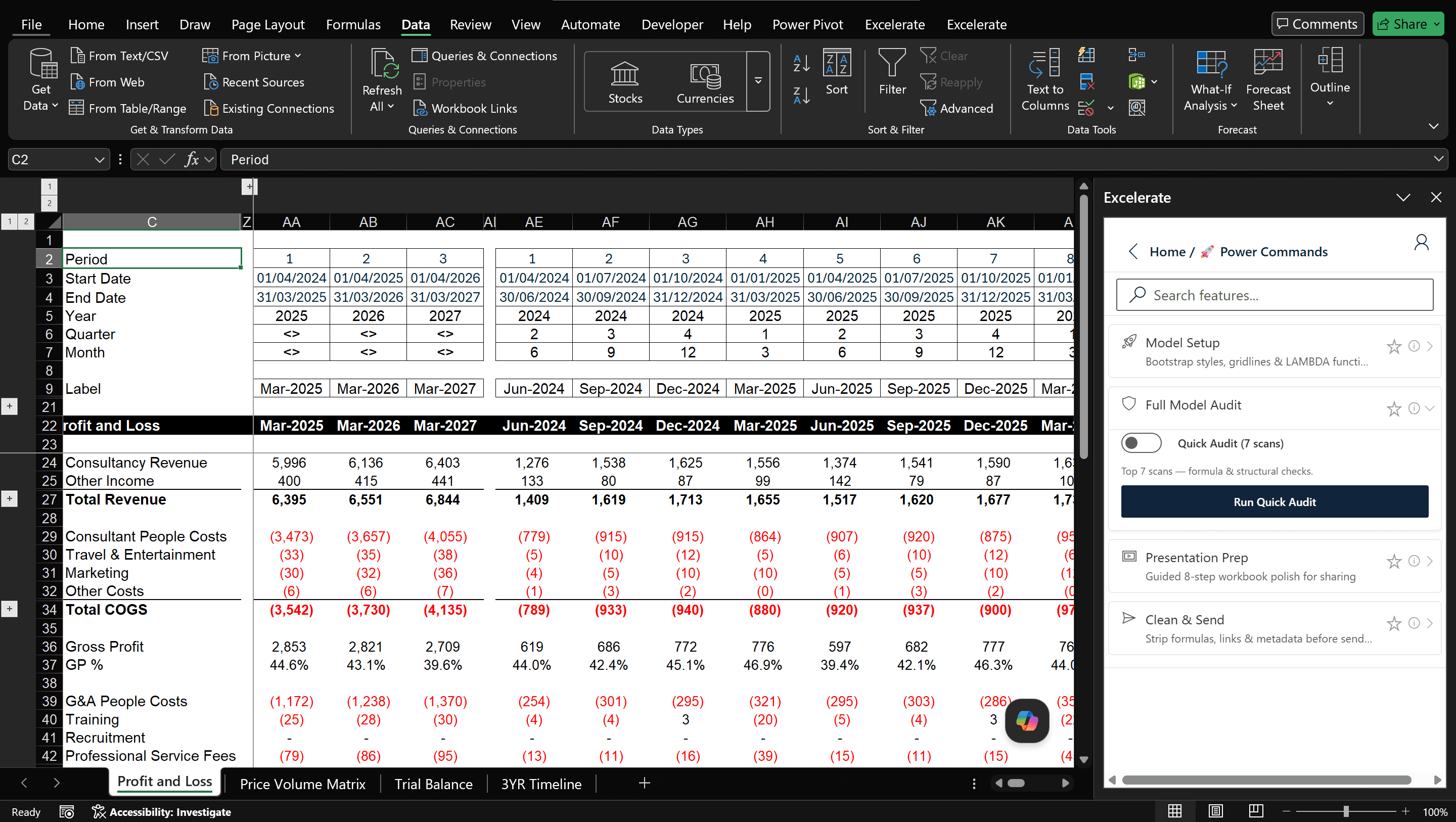
8 minRun the Full Model Audit Power Command. Excelerate orchestrates 15 audit scans across the workbook (dependency check, orphan detection, inconsistency check, broken references, volatile functions, dead named ranges, external link integrity, embedded constants, and more) and presents the findings as an interactive inbox grouped by severity. Fix issues in place: wrap errors, break links, extract constants, all without leaving the panel.
Why this beats manual
- One click runs 15 scans on the AI's output that would individually take an hour to script.
- Findings are deduplicated and ranked by severity. You triage in minutes, not hours.
- Inline fixes mean the audit ends with the workbook actually fixed, not a list of things to come back to.
You now have a complete inbox covering every audit concern in the AI-generated workbook.
Worked example
Same audit, two paths. Manual review of the AI's output versus the seven-step workflow.
Without Excelerate
Manual review of AI output
- Map workbook structure · 60 min
- Identify inputs, links, and externals per sheet · 45 min
- Find AI scratchpads and orphans · 30 min
- Find AI formula inconsistencies · 60 min
- Understand AI-generated formulas · 30 min
- Trace formula precedents back to source · 45 min
With Excelerate
Excelerate 7-step AI-audit workflow
- Sheet Dependency Map · 10 sec
- Orphan Cell Panel · 1 min
- Style Guard · 1 min per sheet
- Formula Inconsistency Detector · 2 min
- Formula Deconstructor · 30 sec per formula
- Logical Flow Map · 2 min
- Full Model Audit · 15 scans, 1 click
What to watch out for
- Excelerate cannot tell you which formulas the AI wrote versus a human, only which ones look suspicious.
- Style Guard uses conditional formatting; clear its rules via the built-in clear-watermark command before saving the workbook back to a stakeholder.
- Copilot-generated dynamic arrays sometimes show up as single-cell anchors in the dependency map.
- Volatile functions (OFFSET, INDIRECT, NOW) can change the dependency map between runs. The map captures the current state.
- Excel Tables (structured references) are mapped as their own nodes, not as cell ranges.
- Models with circular references are flagged separately. Excelerate does not auto-resolve circulars.
- 3D references (Sheet1:Sheet5!A1) are enumerated by tab position, including hidden and very-hidden sheets.
Frequently asked questions
How long does this audit actually take?
Around 18 minutes for a typical AI-generated 40-tab financial model. The dependency map renders in about 10 seconds. Most of the time is judgement on the formulas the workflow flags, not waiting on the tools.
Does Excelerate change anything in the workbook during the audit?
Only one thing. Style Guard applies temporary colour-coded conditional formatting you can clear in one click. Everything else is non-destructive: the dependency map and the Logical Flow Map render inside the Task Pane; the inconsistency and orphan scans report findings without touching cells. You only modify the workbook when you act on a finding yourself.
Can Excelerate tell which formulas came from the AI?
No. Excelerate flags formulas that deviate from the patterns and principles of a well-built model, regardless of whether the deviation came from an AI, a hurried analyst, or a copy-paste. That is the right lens for this workflow: you should not have to trust provenance to trust the model.
Does this catch hallucinated functions from ChatGPT or Claude?
Yes, indirectly. Hallucinated function combinations either #REF! at execution (the inconsistency detector flags them) or return plausible-but-wrong values that surface as pattern breaks across rows (the detector flags those too). The Formula Deconstructor then lets you read the AI's intent in plain English, and the Logical Flow Map confirms each reference actually goes where the AI claimed.
Why not just ask the AI to double-check its own work?
AI marking its own homework is a known failure mode. The model that produced the error is the same model evaluating it, and tends to defend its own output. An independent audit lens, pattern-based and principles-based, catches what the AI will not flag on itself.
Will this work on Excel for Windows, Mac, and the web?
Yes. Excelerate is an Excel add-in and runs on Excel for Windows, Mac, and Excel for the web. All seven tools in the workflow have parity across all three.
How is this different from Excel's built-in formula auditing tools?
Excel's Inquire add-in shows precedents and dependents one cell at a time, in a dialog. Excelerate shows you the whole workbook as a graph in a single view, role-codes each sheet, traces precedent chains across sheets in one laser, and ranks formulas by suspicion across the whole model. Different lens, built for a different scale of question. And built for the era where the workbook may not have been written by a human.
You've seen the workflow. Run it on the next model AI hands you.
The seven steps above are the same workflow Excelerate ships with on day one. No prior setup. No template configuration. Open Excelerate, open the next AI-generated model that lands on your screen, follow the steps. Free for 14 days.